
Edit a photograph with an AI description
Upload one photo, describe the changes and choose the model and quality. This guide covers general editing while keeping the important details in view.
Open service Video walkthrough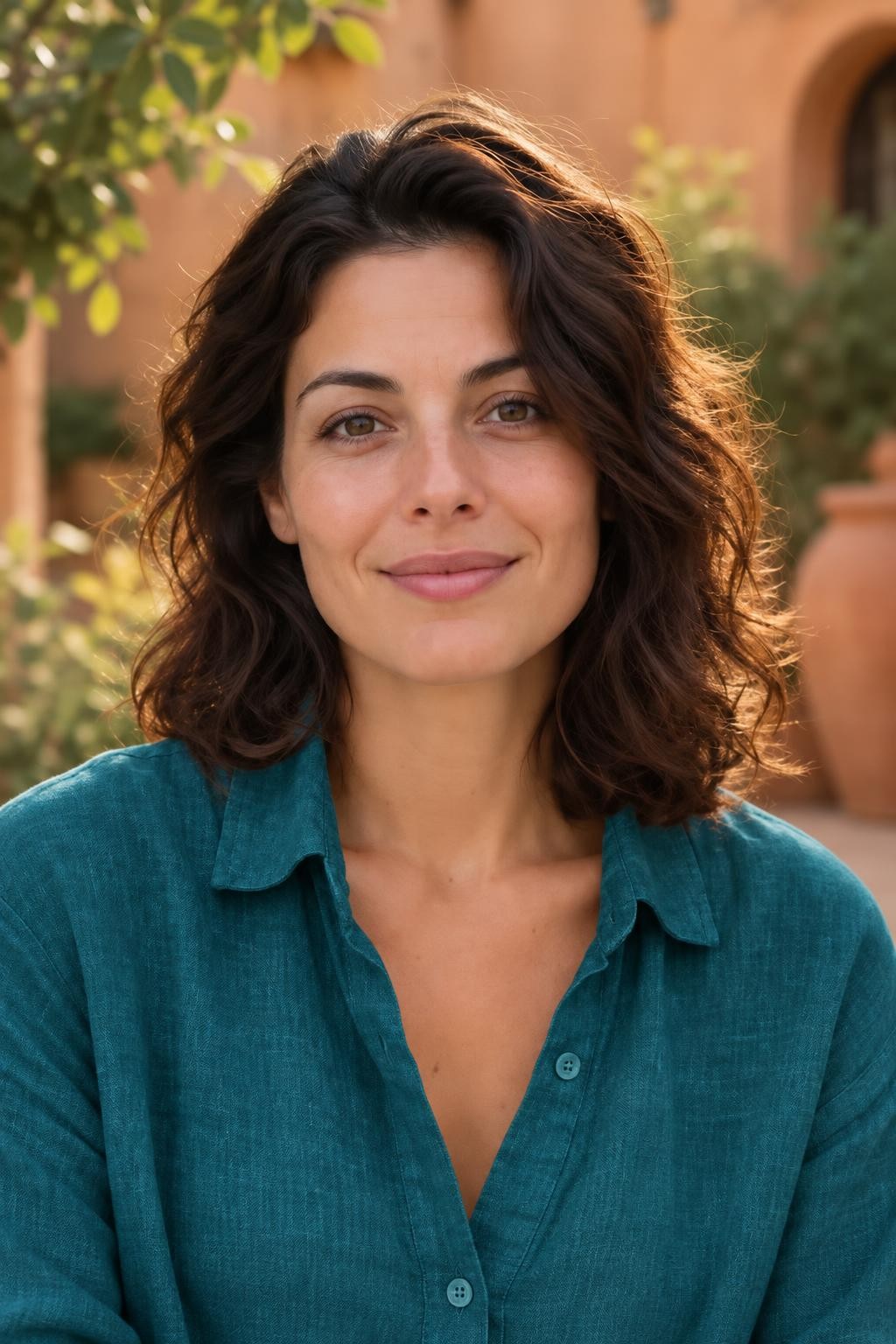
Your new image
Settings used for this result
- Model
- Avatarya Studio 2
- Image quality
- Standard
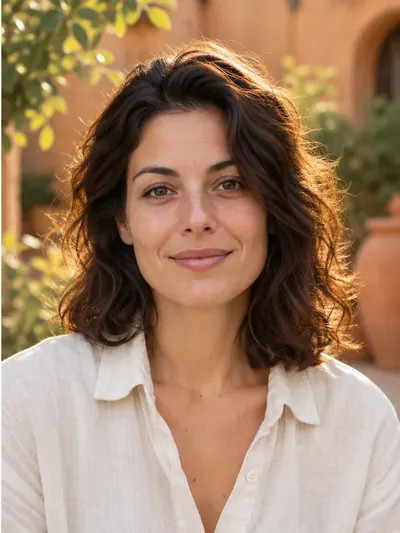
Keep the woman, her face, hair, pose and white shirt recognizable. Change her white shirt to a rich teal linen shirt. Keep the outdoor location, soften the daylight and give the image a natural editorial finish.
Original request sent to the model
Keep the woman, her face, hair, pose and white shirt recognizable. Change her white shirt to a rich teal linen shirt. Keep the outdoor location, soften the daylight and give the image a natural editorial finish.These settings describe the published example. A new run may produce a different image.
Video walkthrough
Steps in the video
- Edit a photograph with an AI description
- Open the tool you need
- Choose the source photo
- Describe the changes you want
- Choose the model and standard quality
- Choose the model and standard quality
- Check the cost and press the processing button
- Previously generated example result
- Previously generated example result
- Download the finished file
- Ready — try it with your own photo
Choose the source
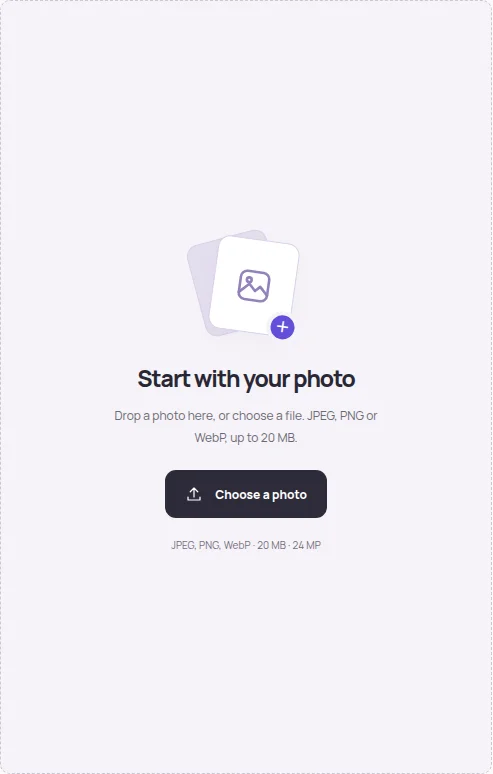
Open Edit photo and choose a JPEG, PNG or WebP up to 20 MB and 24 MP. Use a sharp original. The editor sends a reduced, correctly oriented copy for processing.
Describe one clear task
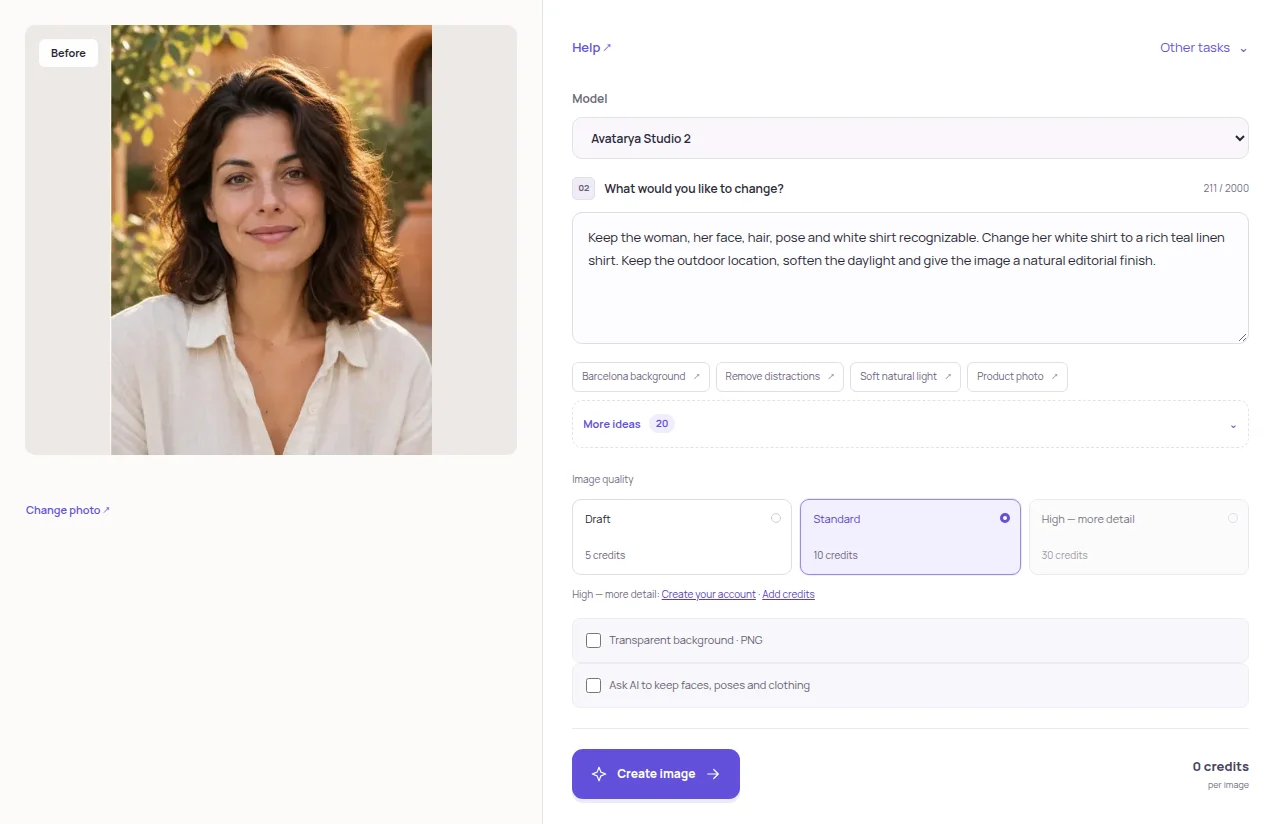
Explain what should change and what should remain. Keep the description within 2000 characters. Use the prompt chips for a starting point and adjust the text. Enable the option to preserve important details when appropriate.
Check quality and cost
Choose a model and draft, standard or high quality. Read the credit cost beside the action button. Guests can use the remaining 3 trial attempts at draft or standard quality; high quality requires an account and credits.
Inspect and download
Start processing, wait for the result and inspect faces, text and small details. Download the image or open your private history. A transparent background produces PNG; ordinary edits produce JPG.
Practical tips
Ask for specific changes to lighting, colour or scenery instead of combining unrelated tasks. The preservation option is an instruction to the model, so inspect the actual result. Trial and promotional-credit results may carry a watermark.