
Make a white background behind a person
Use the paid OpenAI background-removal action in Document photo to keep the person and place a clean colour behind the cutout.
An example from the editor

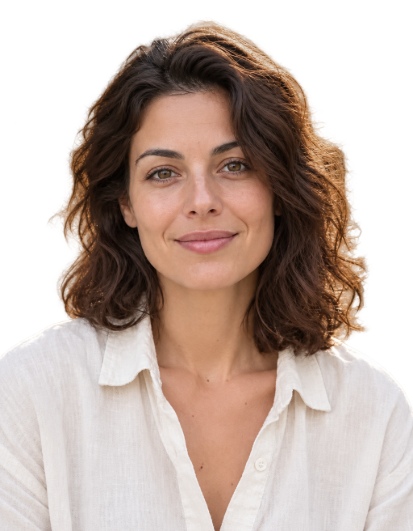
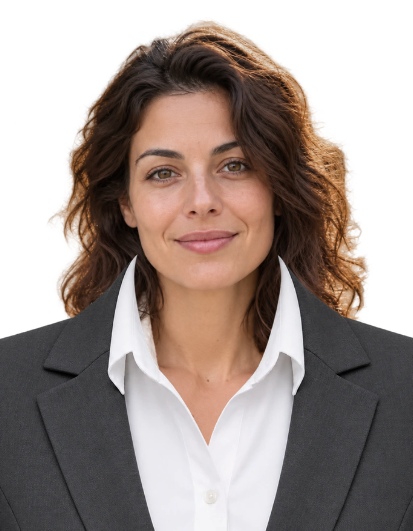
This illustrates the editor. Choose the source photo and editing method according to the receiving organisation’s requirements before submitting a document photo.
Load a portrait
Open Document photo and choose JPEG, PNG or WebP up to 40 MB and 36 MP, or take a webcam photograph. Keep the whole head, neck and shoulders visible.
Choose format and quality
Choose the document size and align the face. Sign in and choose draft, standard or high background-removal quality. The respective configured costs are 5, 10 and 30 credits.
Run White background behind person
Press the dedicated action button. A reduced copy is sent to OpenAI with instructions to keep only the main person, clothing and worn accessories, removing the background, chairs and other objects. Guest free attempts are not used.
Check and export
Inspect the hair, face and shoulders. The editor fills transparent areas with white; you can choose grey or blue without another paid removal request for this same photo. Prepare and download JPG or PNG.
Practical tips
Selecting White in the colour list alone cannot remove an opaque background. The processed source and cutout are kept in private history for up to 90 days; cropping and colour changes run in the browser.