
Document photos: a white background, clothing and print sheets
Follow one portrait from an outdoor photograph to a white background and a business outfit. Cropping and clothing overlays run in your browser; background removal through OpenAI costs credits.
An example from the editor
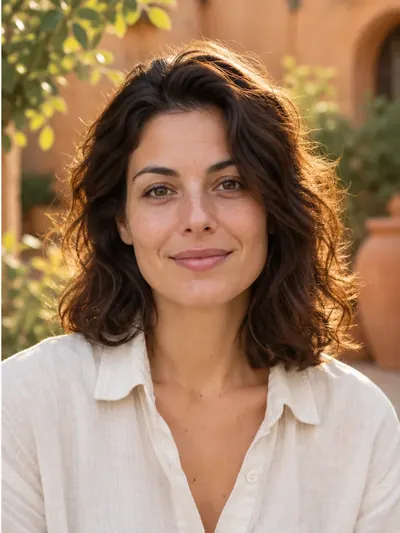
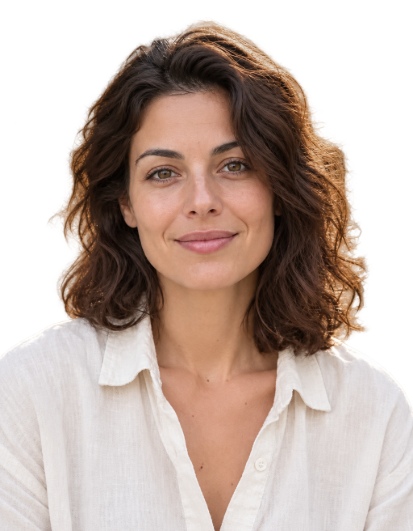
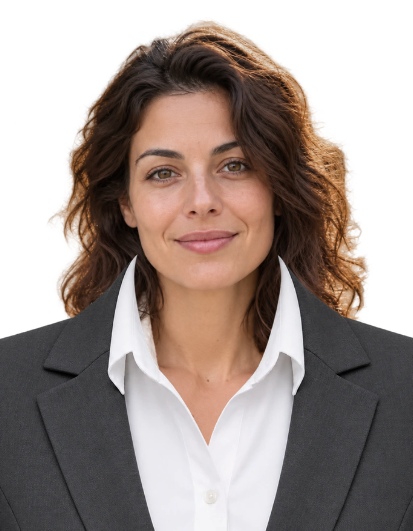
This illustrates the editor. Choose the source photo and editing method according to the receiving organisation’s requirements before submitting a document photo.
1. Choose a source photograph
Choose a file or use your webcam. JPEG, PNG and WebP up to 40 MB and 36 megapixels are supported. Use a clear, front-facing portrait with the hair, neck and shoulders visible. A small image saved from a messenger may look soft in print.
2. Set the size and align the face
Choose a document preset or enter custom dimensions in millimetres. Drag the photograph and adjust zoom and position. Align the crown and chin with the guides and leave space above the hair. Guides are excluded from exports. Presets help with layout; open Official requirements for the relevant instructions.
3. Create a white background
Sign in, choose quality and press White background behind person. A reduced copy is sent to OpenAI with instructions to keep only the main person, their clothing and worn accessories, removing the surroundings and furniture. Draft costs 5 credits, standard 10 and high 30. Guest free attempts cannot be used. Inspect the hair, face and shoulders afterwards. Changing the fill colour reuses the completed cutout for the current photo without another paid request.
4. Fit a clothing overlay
Choose the women’s blazer or men’s suit under Clothing overlay. A separate preview appears beside the controls. Drag the clothing in this preview, then adjust its size, horizontal position and collar height. Match the collar to the base of the neck and the shoulders to the person. This is a layer above the photograph; it does not automatically remove the original shirt. Enlarge the overlay if old clothing shows at the edges. Choose Keep original clothing to remove the layer.
5. Download the photograph and print sheet
Choose 300 or 600 dpi, paper size, copy count and margins. Press Prepare photo and print sheet. Download the individual photo as JPG or PNG, or the print sheet as JPG or PDF. Both individual formats retain the selected background colour. Print the PDF at Actual size / 100%, with Fit to page disabled, and measure one printed photograph with a ruler.
Why does selecting white not remove the scenery?
The colour selector fills transparent areas. For an opaque photograph, first run the paid White background behind person or Remove background action.
Can I try the clothing without paying?
Yes. Cropping, clothing overlays, changing the fill of an existing cutout and preparing files are free. Credits are charged for background removal through OpenAI.
Why does the outfit need manual adjustment?
Head size and body position vary between photographs. The initial placement is a starting point; fit the collar and width using the preview. Long hair, a turned body or bulky original clothing may require a different photograph.
Can the result be used for every document?
Requirements vary by document and receiving organisation. Software changes to the background or clothing may not be allowed. Read the relevant requirements before editing and submitting.
Where the photograph is processed
Cropping, clothing overlays and print layouts run in your browser. A reduced copy is sent to OpenAI only when you request background removal. The source and result of that request remain in your private history for up to 90 days and can be deleted from your account.