
Fit a men’s suit or women’s blazer to a portrait
Use the free clothing layers in Document photo and adjust their placement in the dedicated preview.
Open service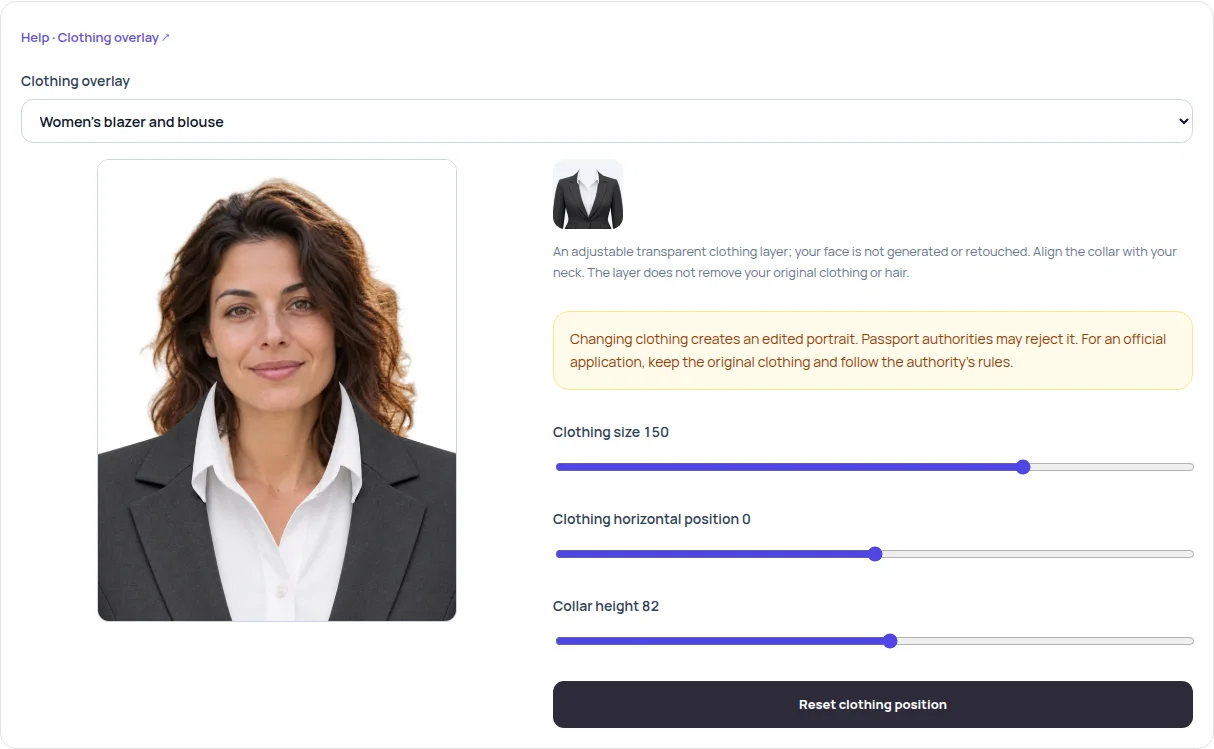
Choose and align the portrait
Load a portrait in Document photo. Choose the physical photo size and align the head before fitting clothing. Removing the background is optional and is a separate paid action.
Choose the outfit
Under Clothing overlay, select the men’s suit and tie or women’s blazer and blouse. The editor loads a transparent clothing layer and shows a separate preview beside its controls.
Fit the collar and shoulders
Drag the outfit directly in the clothing preview. Adjust clothing size, horizontal position and collar height until the collar meets the base of the neck and the shoulders fit. Use Reset clothing position to return to the starting placement.
Export or restore clothing
Choose Keep original clothing to remove the layer, or prepare the photograph and download JPG or PNG with the outfit. Fitting the layer does not itself send a new request to OpenAI or spend credits.
An example from the editor
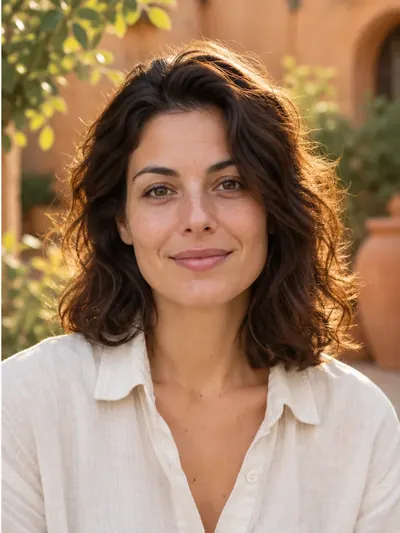
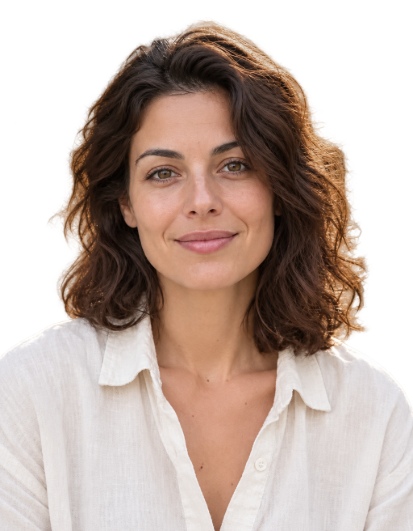
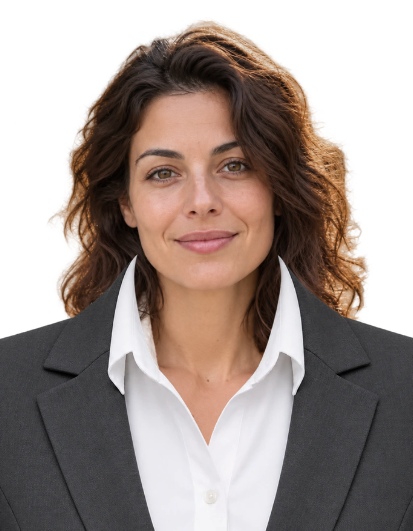
This illustrates the editor. Choose the source photo and editing method according to the receiving organisation’s requirements before submitting a document photo.
Practical tips
The overlay does not erase the original shirt or automatically put long hair in front of the collar. If the original clothing shows around it, adjust the size or choose another portrait. Check the receiving organisation’s editing rules for official documents.